|
Signatures as Canned Text Use Outlook's Signature feature to
add canned text anywhere in your message. For example, the firm name
and address has changed and you want to alert your clients. Create a
signature that you can insert anywhere in your outbound message with the new
firm name and address:
- Click Tools, Options, Mail Format:
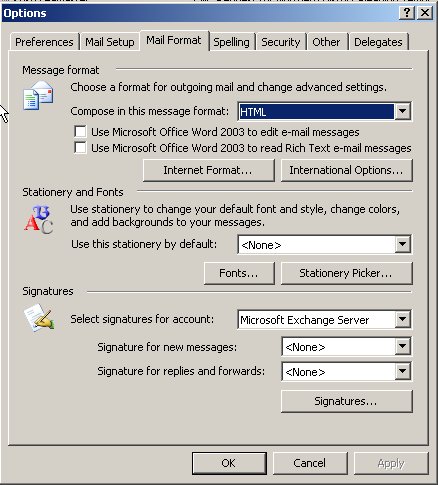
- Click on the Signatures button
- Click New
- Enter a name for the new signature
- Click Next
The following screen appears:
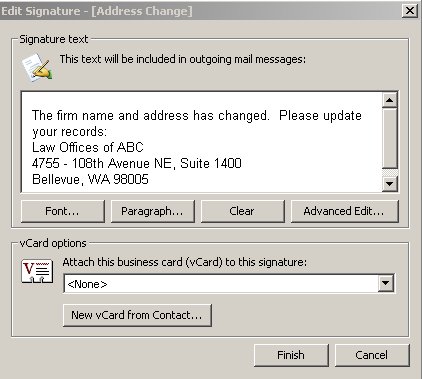
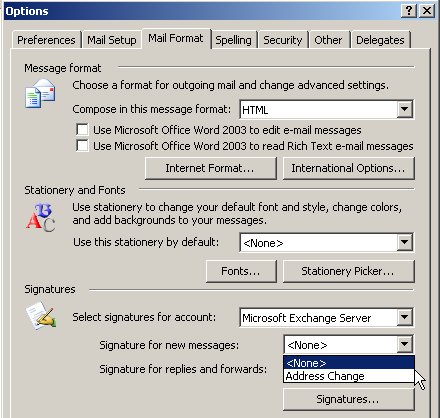
The new signature appears as your default signature
for new messages. You may want to set this to None, so that
you can insert this text on a message by message basis:
To insert the new signature, create a message. With the
cursor at the location where you want the information to appear,
click Insert, Signature and select the one you want:
 |